
Answer a conversation from the inbox
Read and reply to anyone who wrote to any of your connected accounts, from one place.
Updated 6 steps
Steps
- Open Inbox in the sidebar.
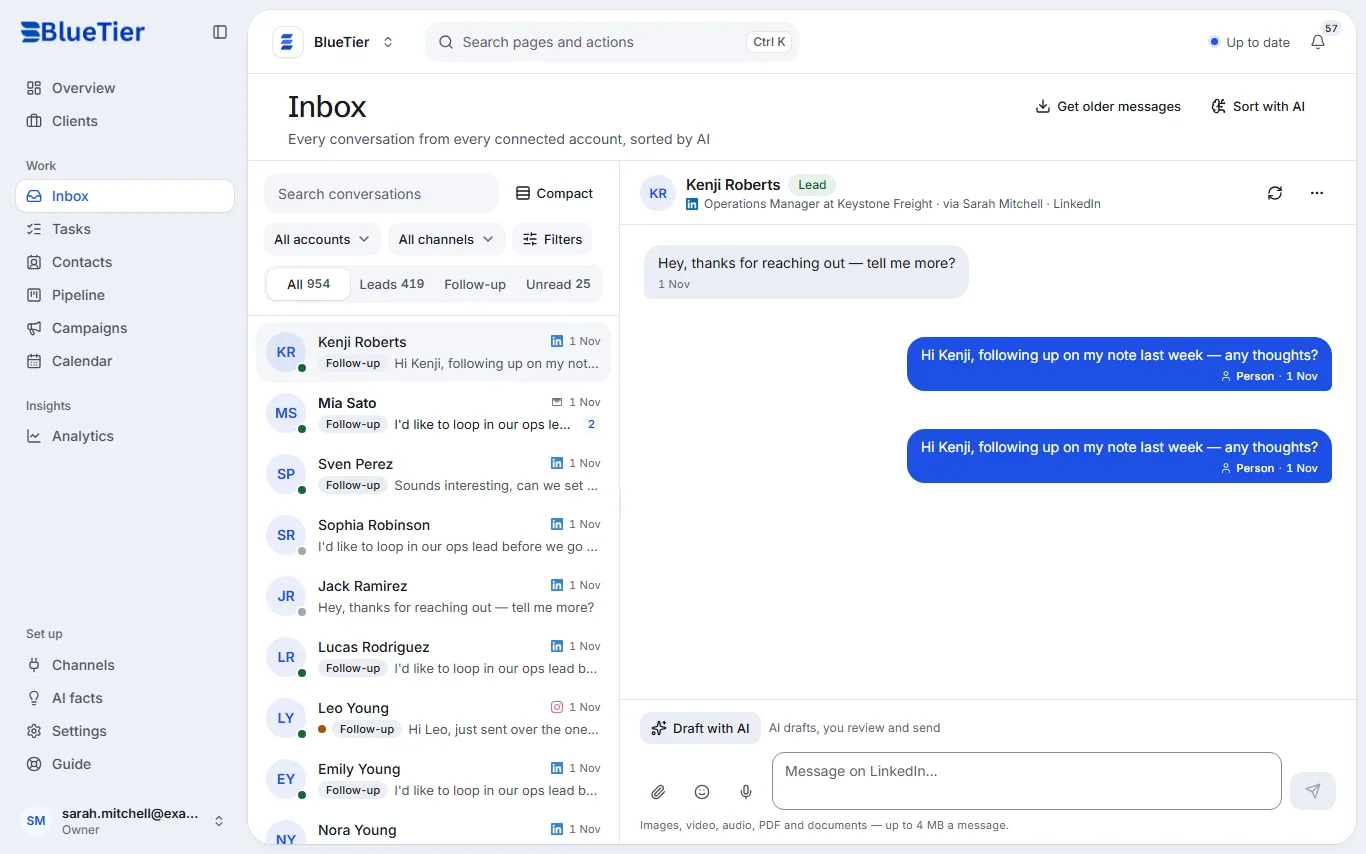
- Find the conversation: use All, Leads, Follow-up or Unread above the list, or type in Search conversations.
- Choose the person's name. The conversation opens on the right.
- Write your reply in the box at the bottom. The box names the channel your reply will go out on.
- Press the send button. To attach a file, use the paperclip: images, video, audio, PDFs and documents up to 4 MB a message.
- When you are done with it, choose Resolve: in the panel beside the conversation on a wide screen, or under More actions (the ⋯ button) on a smaller one.
What you will see
Your reply appears in the conversation in blue. It goes out on the channel the person wrote on: LinkedIn to LinkedIn, WhatsApp to WhatsApp, email from your own mailbox.
Good to know
- Narrow the list to one account with All accounts, or to one channel with All channels.
- Mark something as junk with Spam, next to Resolve.
Related articles
Still stuck?Contact support at info@bluetier.ai and the BlueTier team will help.