
Find and manage a contact
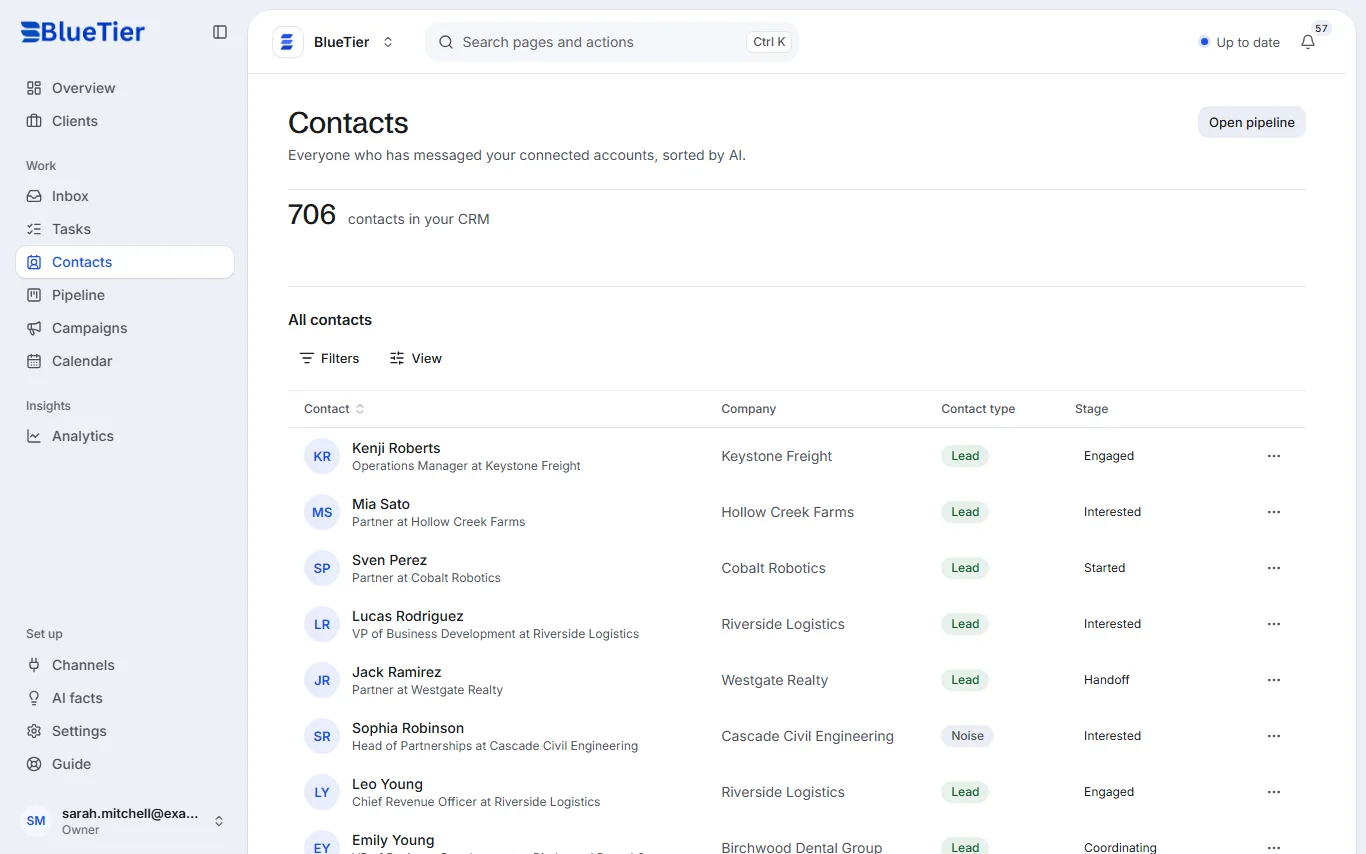
Everyone who has written to your connected accounts becomes a contact, sorted by the AI. Here is how to find one and act on it.
Updated 5 steps
Steps
- Open Contacts in the sidebar.
- Search by name, company or headline, or narrow the list by kind (Leads, Pitches or Noise), company or stage.
- Choose a contact to see their details.
- To write to them, choose Open conversation. To see their LinkedIn page, choose the LinkedIn icon.
- For everything else, open More actions (⋯) on their row.
What you will see
The list shows everyone who has messaged your connected accounts, with their company, kind and stage.
Good to know
- Contacts are created for you from your conversations: you never type them in.
- If someone asks you to delete their data, choose Erase personal data in More actions. This cannot be undone.
Related articles
Still stuck?Contact support at info@bluetier.ai and the BlueTier team will help.