
Connect a channel
Bring an account you already use into BlueTier, so its conversations land in your one inbox.
Updated 5 steps
Before you startIf you do not see Connect a channel, ask your workspace owner or an admin to connect the account for you.
Steps
- Open Channels in the sidebar.
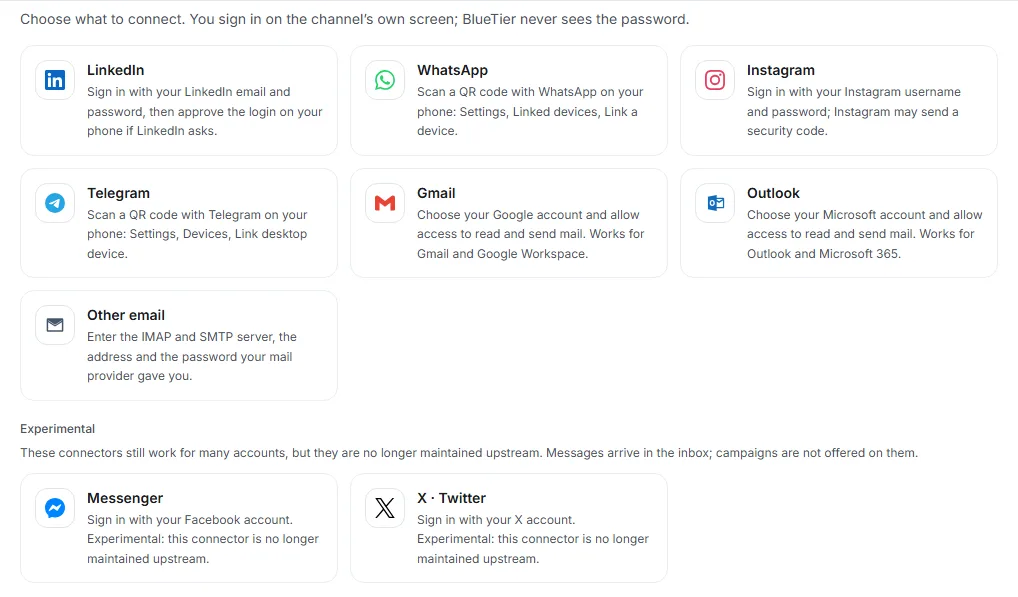
- Choose Connect a channel.
- Pick the channel: LinkedIn, WhatsApp, Instagram, Telegram, Gmail, Outlook or Other email.
- Sign in on the channel's own screen. BlueTier never sees your password.
- Come back to the Channels page and give it a moment while BlueTier looks for the new account.
What you will see
The account appears under its channel with a green Connected label and a count of its conversations. Its messages start arriving in your inbox.
Good to know
- Basic includes up to two connected accounts, Professional up to four and Premium up to eight, on any channel.
- Each channel has its own short guide below, with exactly what to do on your phone or in your mail account.
Related articles
Still stuck?Contact support at info@bluetier.ai and the BlueTier team will help.