
Build a LinkedIn campaign
Describe who you want to reach, check the people and the messages, and save. Nothing is sent until you start it.
Updated 6 steps
Before you startYou need a connected LinkedIn account. Basic runs one campaign at a time, Professional up to 3 at once and Premium as many as you need.
Steps
- Open Campaigns and choose New campaign.
- Choose LinkedIn.
- Pick what you want LinkedIn to do, for example Invite to connect, Message your connections or Warm up, then invite, and choose Start.
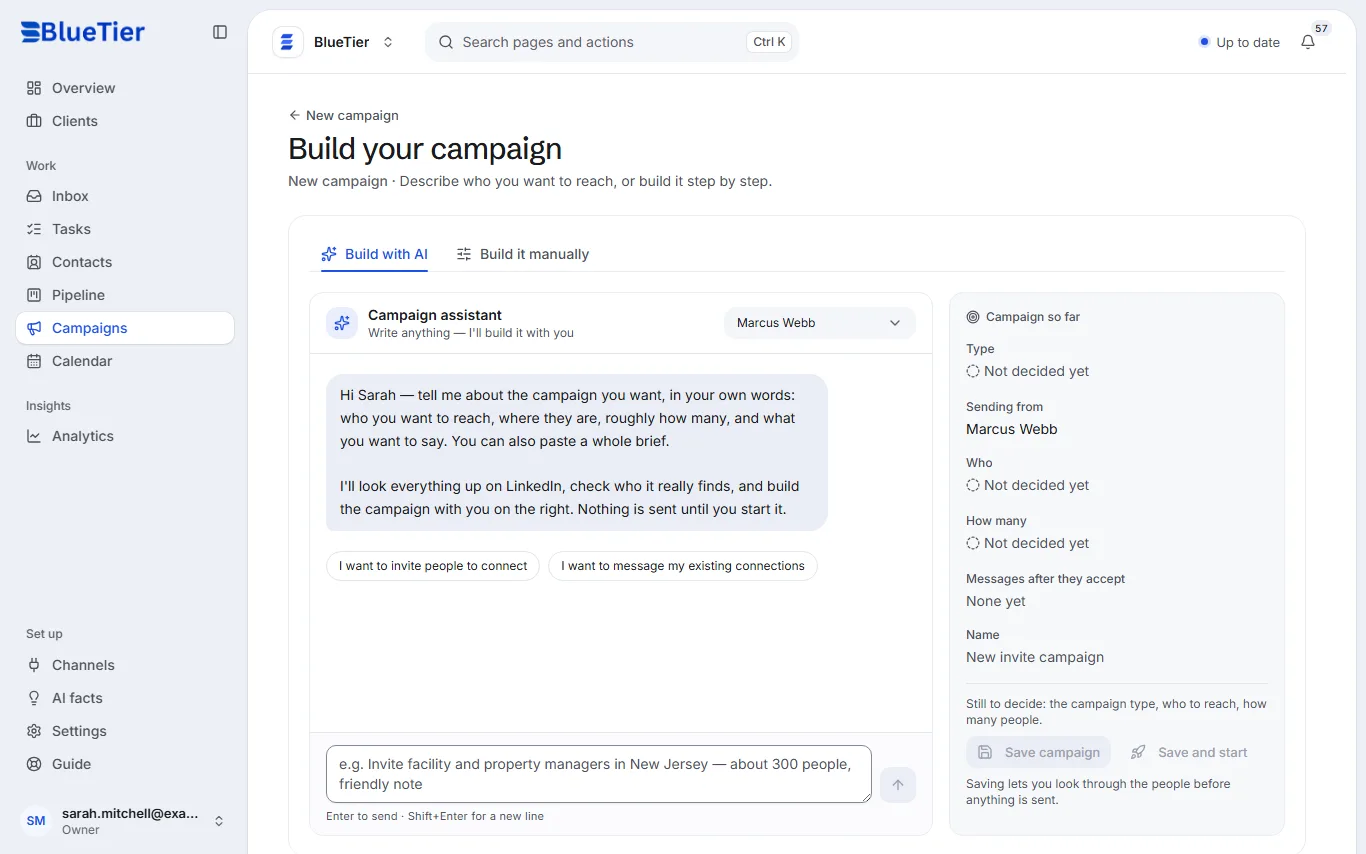
- On Build your campaign, use Build with AI to describe who you want to reach in your own words, or Build it manually to fill it in step by step.
- Check Campaign so far on the right: who it reaches, how many people, and the messages they get after they accept.
- Choose Save campaign to look through the people first, or Save and start when you are ready.
What you will see
The campaign appears in your list on Campaigns. Until you start it, it shows Not started and sends nothing.
Good to know
- The campaign assistant drafts and edits the campaign with you, but it never starts one: only a person does.
- Replies come back to your inbox, labelled by the AI, and the conversation is yours.
Related articles
Still stuck?Contact support at info@bluetier.ai and the BlueTier team will help.