
Connect your LinkedIn account
Connect LinkedIn to answer your LinkedIn messages from BlueTier and to run LinkedIn campaigns.
Updated 6 steps
Steps
- Open Channels in the sidebar, then choose Connect a channel.
- Choose LinkedIn.
- Sign in with your LinkedIn email and password on the secure sign-in page that opens.
- If LinkedIn asks, approve the login on your phone.
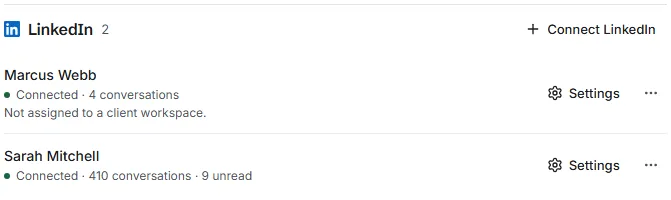
- Return to BlueTier. The account appears under LinkedIn as Connected.
- Optional: choose Settings on the account to give it a name, switch on AI drafts or Auto-answer, and set a daily limit.
What you will see
Your LinkedIn account is listed under LinkedIn with a green Connected label and its number of conversations. Its messages are in your inbox, and it can send campaigns.
Good to know
- Any tool that works through a LinkedIn account carries some risk. BlueTier paces what it sends and pauses when an account needs attention.
- BlueTier is not affiliated with or endorsed by LinkedIn.
Related articles
Still stuck?Contact support at info@bluetier.ai and the BlueTier team will help.