
Let the AI answer on its own
Auto-answer lets the AI reply for you on the accounts you choose, inside strict rules, and hands anything it cannot answer to a person.
Updated 5 steps
Before you startAI drafts, Auto-answer and AI facts are part of the AI Response Assistant, included on Premium. Your business brief must be complete: until it is, Auto-answer stays off.
Steps
- Complete your business brief (Settings, AI, Business brief).
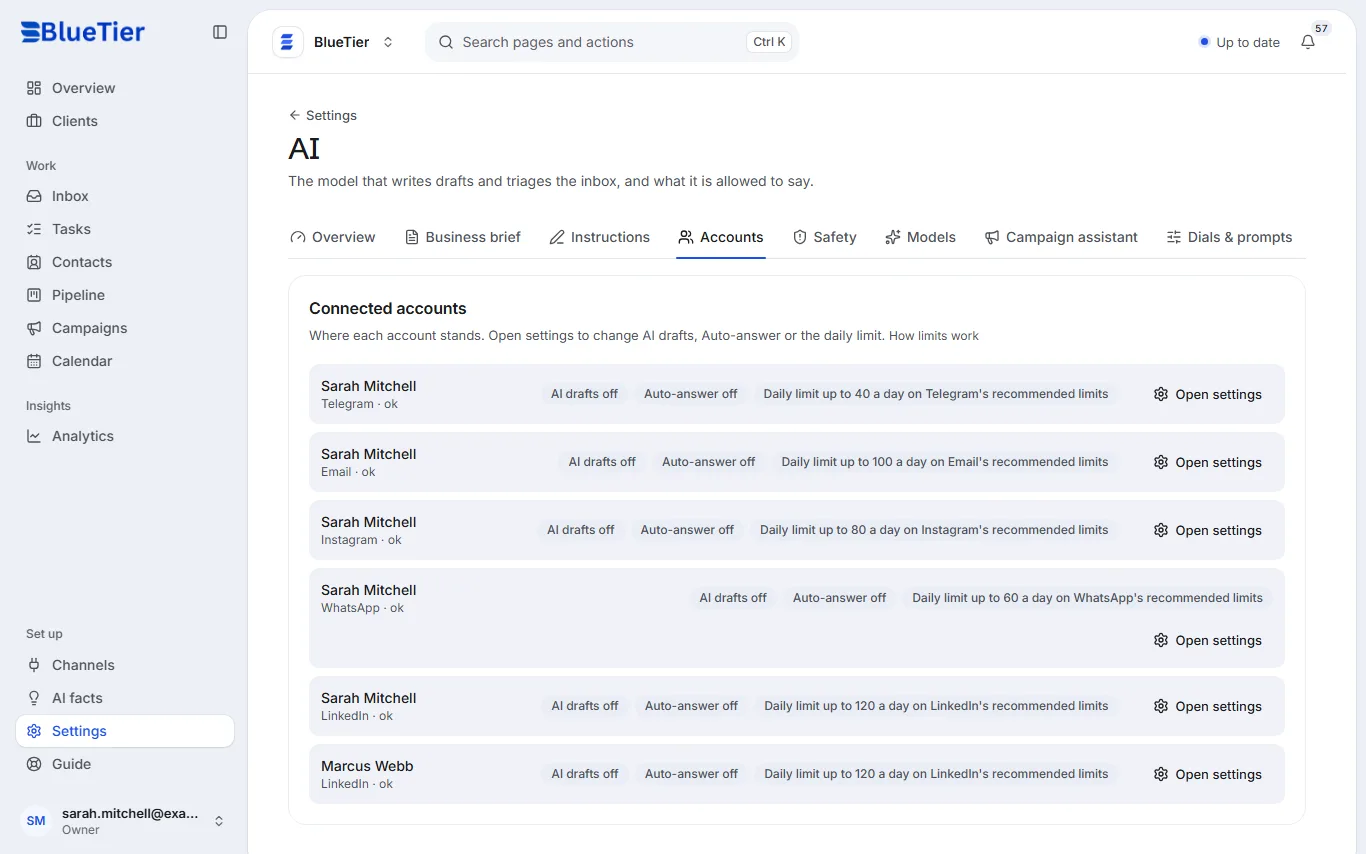
- Open Settings, then AI, then the Accounts tab.
- Find the account that should answer and choose Open settings.
- Under AI replies, switch on Auto-answer.
- Optional: open the Safety tab to see which kinds of message it may answer.
What you will see
The account's row shows Auto-answer on. On Overview, Replies sent from BlueTier shows the split between what the AI sent and what your team sent.
Good to know
- It answers only from your business brief and knowledge documents. When they do not hold the answer, it hands the conversation to a person, lets you know, and stays quiet in that conversation until someone on your team replies from the BlueTier inbox.
- Some messages always go to a person: someone asking you to stop, a hostile message, and sensitive topics such as legal questions, refunds or the press.
- It sends only a limited number of automatic replies in any one conversation, and every reply counts toward the account's daily limit.
- Switch it off the same way at any time.
Related articles
Still stuck?Contact support at info@bluetier.ai and the BlueTier team will help.