
The AI is not answering on its own
Auto-answer needs a few things in place. Here is how to find which one is missing.
Updated 5 steps
Before you startAI drafts, Auto-answer and AI facts are part of the AI Response Assistant, included on Premium.
Steps
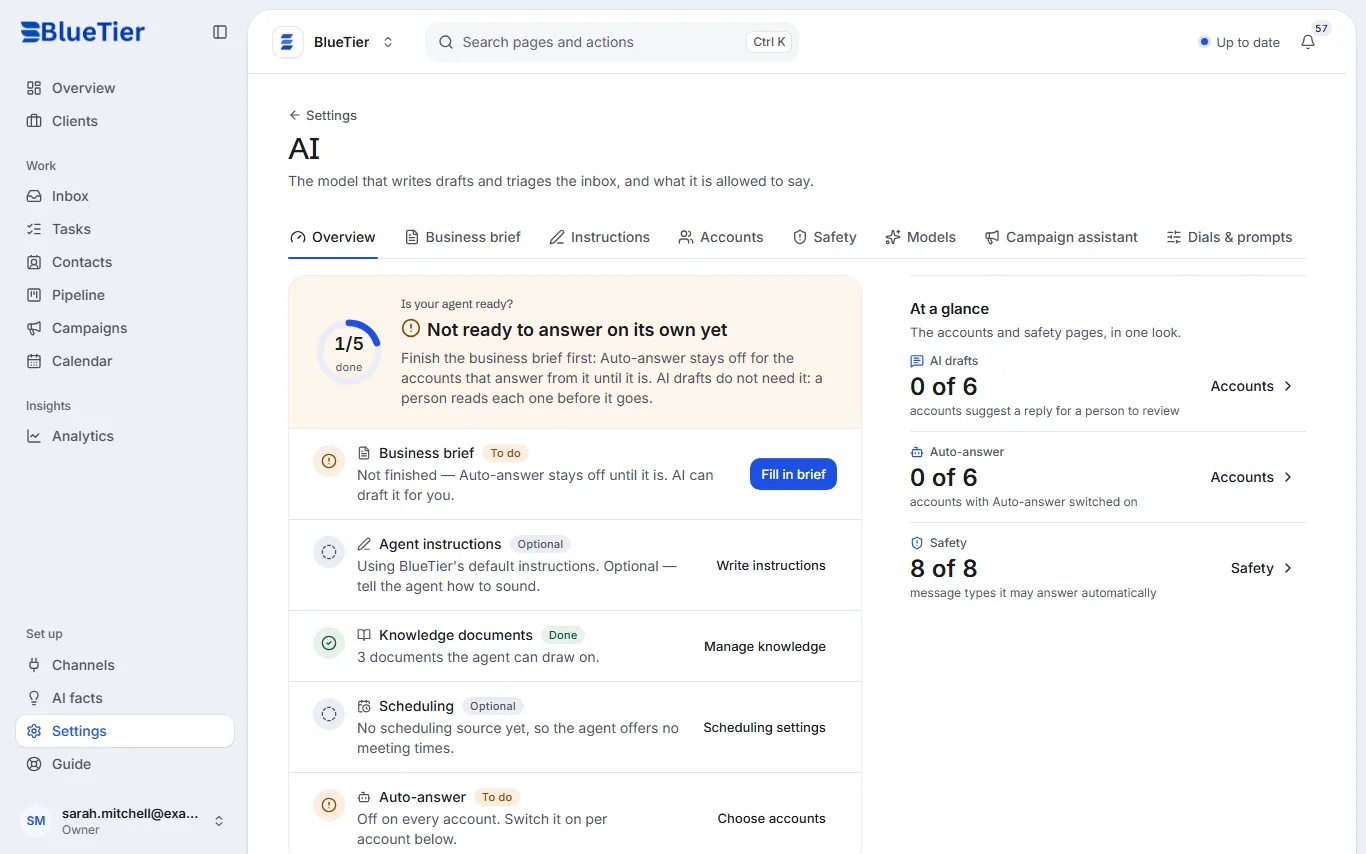
- Open Settings, then AI. The Overview tab says whether your agent is ready to answer on its own, and what is missing.
- If Business brief says To do, choose Fill in brief and complete it: Auto-answer stays off until it is.
- Check that Auto-answer is on for the account: choose Choose accounts, or open the Accounts tab.
- Open the conversation in Inbox. If the AI handed it to a person, it stays quiet there until someone on your team replies from the BlueTier inbox.
- Check that the account shows Connected in Channels, and has not reached its daily limit.
What you will see
Once everything is in place, the AI's Overview stops saying it is not ready, and new messages that qualify get an answer.
Good to know
- Some messages are always left for a person: someone asking you to stop, a hostile message, and sensitive topics such as legal questions, refunds or the press.
Related articles
Still stuck?Contact support at info@bluetier.ai and the BlueTier team will help.