
Let the AI book meetings in your Calendly
When someone asks to meet, the AI offers real free times and books the one they choose in your Calendly.
Updated 5 steps
Before you startScheduling Assistance (Beta) is included on Premium. You need a paid Calendly plan (Standard or higher).
Steps
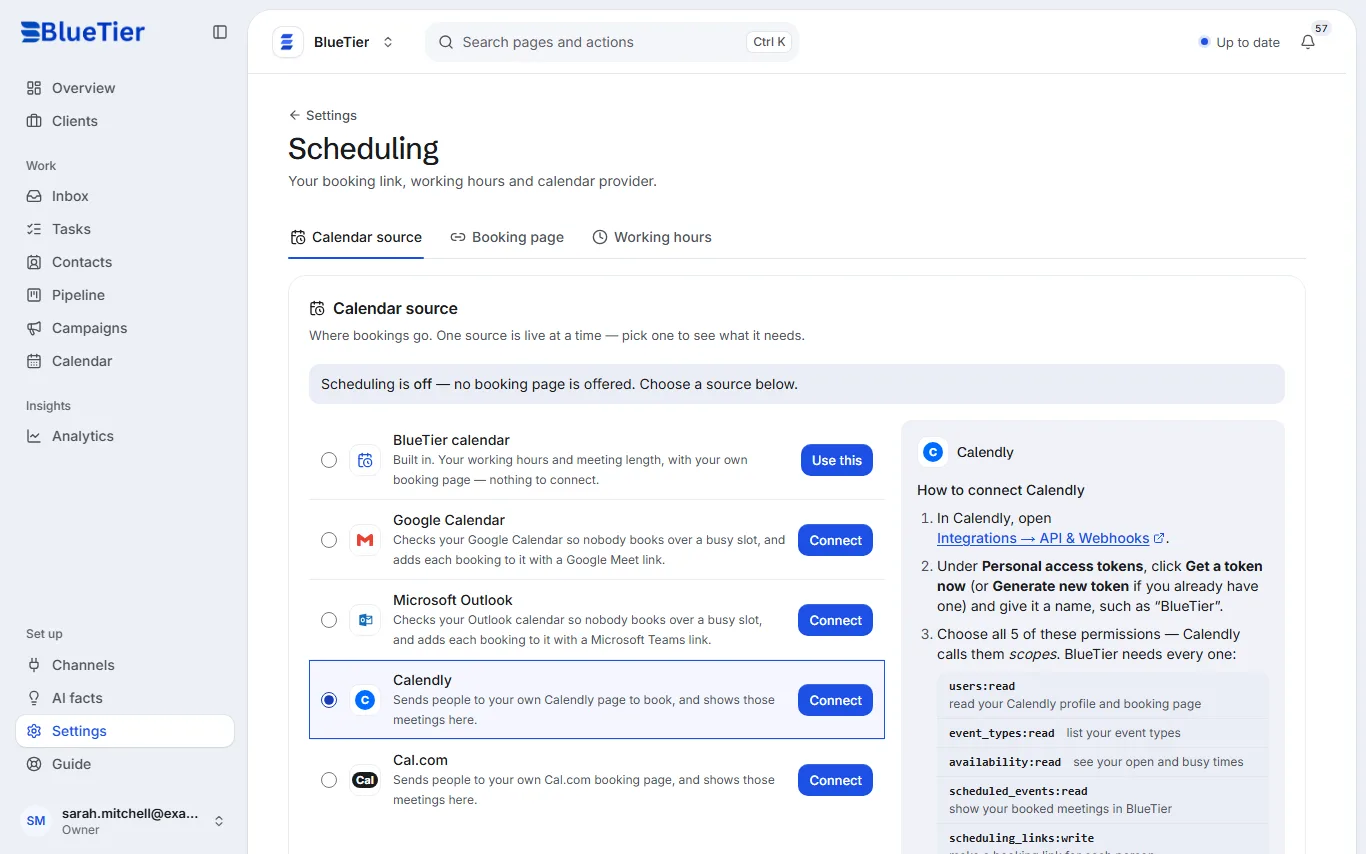
- Open Settings, then Scheduling.
- Under Calendar source, choose Calendly, then Connect.
- In Calendly, open Integrations, then API & Webhooks, and create a personal access token with every permission the BlueTier screen lists.
- Paste the token into BlueTier and choose Verify and list event types.
- Switch on Auto-answer for the accounts that should book (see the guide to Auto-answer).
What you will see
When a contact's own message asks to meet, the AI's reply offers real free times from your Calendly. When they pick one, or name another free time, the AI books it in your Calendly.
Good to know
- The AI books only when Auto-answer is on and Calendly is connected. In a draft you send yourself, the times and the booking link wait for your review, and the contact books through the link.
- It never invents a time: every time it offers comes from your Calendly availability. No free times means no offer.
- Calendly needs the contact's email to book. If the AI does not have it, it asks for it.
- The other calendar sources (the BlueTier calendar, Google Calendar, Microsoft Outlook and Cal.com) give contacts a booking link instead: only with Calendly does the AI book the time itself.
Related articles
Still stuck?Contact support at info@bluetier.ai and the BlueTier team will help.