
Review and send an AI draft
Let the AI write a first reply from your own business facts, then read it, change it and send it yourself.
Updated 5 steps
Before you startAI drafts, Auto-answer and AI facts are part of the AI Response Assistant, included on Premium. The AI writes from your business brief and your knowledge documents, so fill those in first.
Steps
- Open a conversation in Inbox.
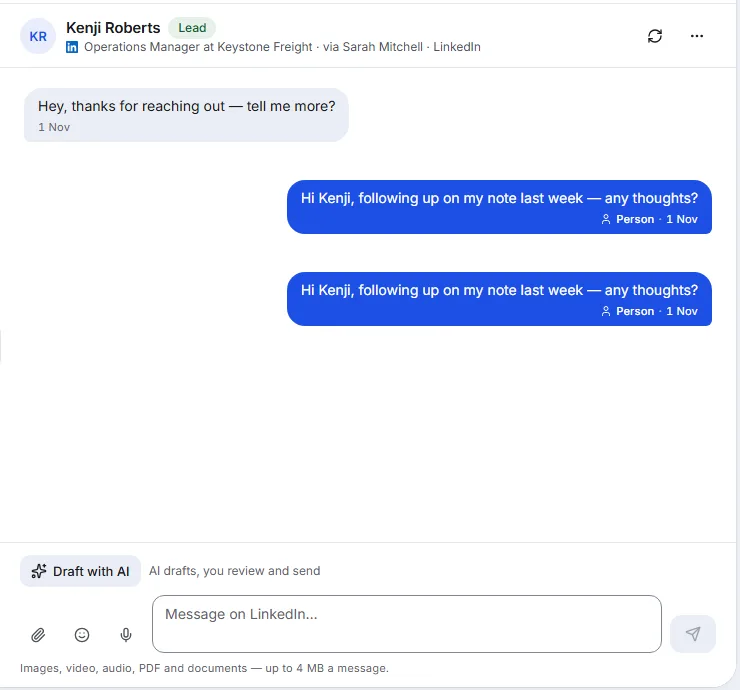
- Choose Draft with AI, just above the message box.
- Read the draft in the message box.
- Change anything you like. It is your message until you send it.
- Press send when it reads right. Nothing goes out before you do.
What you will see
The draft fills the message box. Once you send it, it appears in the conversation like any reply you write yourself, on the conversation's own channel.
Good to know
- When the person asks to meet and scheduling is set up, the draft can include real open times and a booking link, for you to review.
- Want the AI to answer some conversations without you? See the guide to Auto-answer.
Related articles
Still stuck?Contact support at info@bluetier.ai and the BlueTier team will help.